UNIX Fundamentals
Learning Objectives
By the end of this section, you should be able to:
- Describe the high-level Unix filesystem layout
- Break down a command into command, flags, and arguments
- Use
pwd,mkdir, andlsto orient yourself on a system - Explain what a shell does and why it matters for automation
1. File and Folder Organization
Similar to Windows computers, UNIX has a directory structure to organize data.
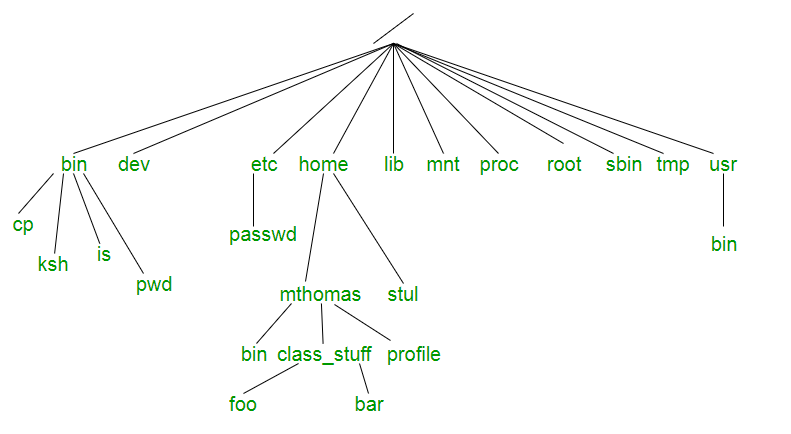
At the very top of your system and this image, there is the root directory /. This is analogous to the C:\ drive in Windows.
Below that, there are many "system" folders which the UNIX operating system uses to run (bin, dev, etc, lib, proc, sbin, etc). The home folder contains user directories similar to the "Users" folder in windows and mac systems.
Let's login and open the terminal to start learning some commands and practice navigating the file/folders.
2. Command Anatomy: Command, Flags, Arguments
Linux follows rules for command syntax. Let's take a look at the cp command example below.
Understanding the Command:
cp: The first part of the command is the program/utility you are telling Linux to run. These programs need to be accessible via the$PATHenvironmental variable.-R: The second (and optional) part of any command is the command line flag(s). Flags allow users to augment the default behavior of the command in some way. In this case, recursively copy files/folders. Flags are also sometimes called parameters.myFolder ~/Somewherelse/tocopy: The third part of any command is the command line argument(s). In this case, we have two arguments instructing thecpcommand to copy the data inmyFolderto a location~/Somewherelse/tocopy.
3. Environment Variables and PATH (Preview)
Some commands work from anywhere because your shell looks for executables in locations listed in the $PATH variable. You will explore this more in later sections when creating your own scripts.
4. First Linux/UNIX Commands
On a Linux system, the default directory when logging into the system will be your user's home folder. This is signified by the tilde ~ character.
To find out the full path of where you are located on the operating system, use the pwd command.
Let's make a folder called training for this workshop using the mkdir command.
Use the ls command to verify if the training folder has been made.
5. What is a Shell?
A Unix shell is a command-line interpreter or shell that provides a command line user interface for Unix-like operating systems. The shell is both an interactive command language and a scripting language, and is used by the operating system to control the execution of the system using shell scripts.
So the commands we were running above were sent to the Linux operating system by a shell. The default shell on Pronghorn is BASH. For today, we will be issuing commands interactively. However, in the next meeting, we will create "bash scripts" in order to automate our analyses (and get them to run on Pronghorn as scheduled jobs).
Day 1 Checkpoint 1
Make sure you can do all of the following before moving to the next section:
- Run
pwdand explain what it prints. - Create a folder called
trainingand verify it exists. - Explain the difference between a command (
cp) and a flag (-R).